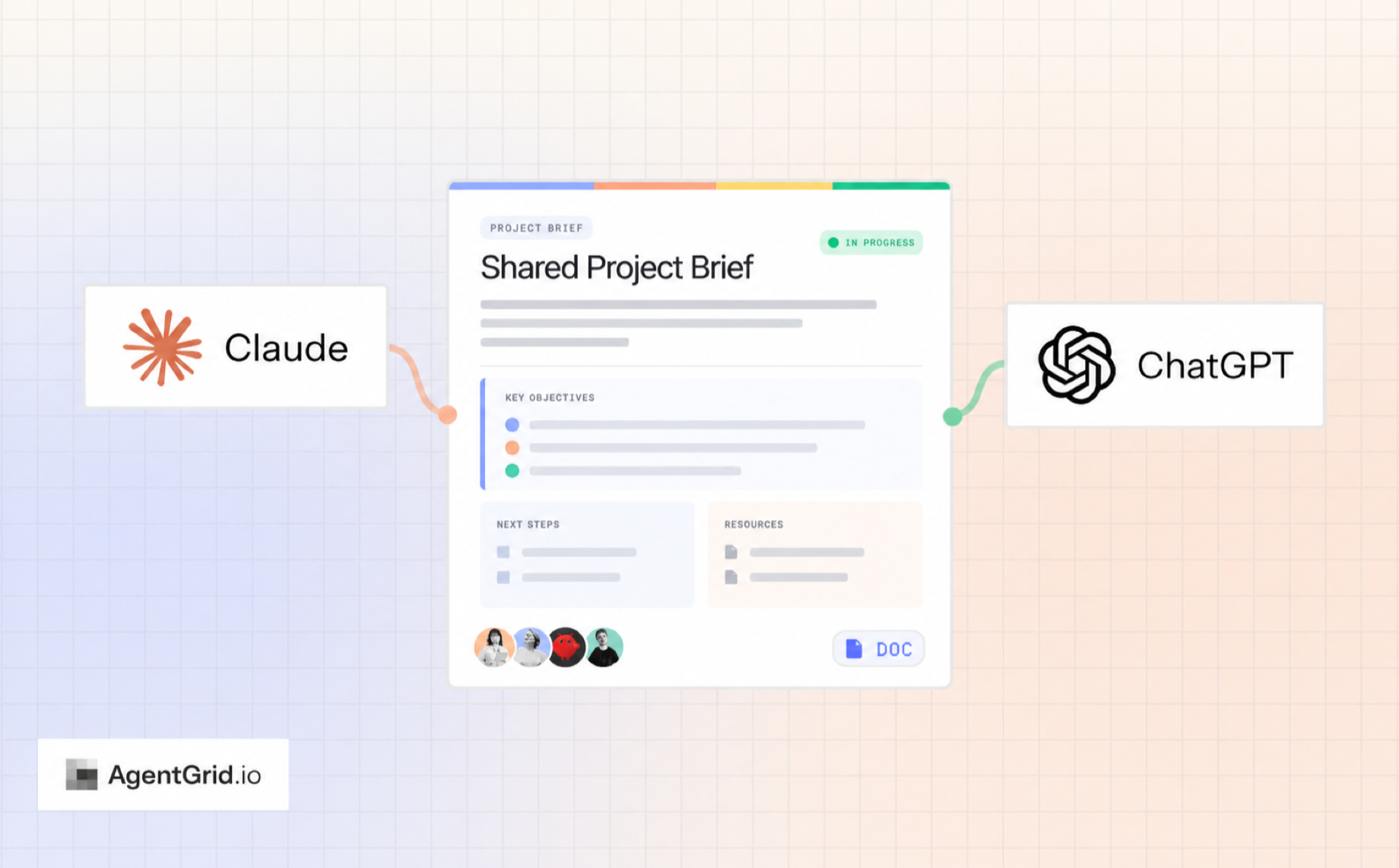
You work through a project with Claude, then open ChatGPT to continue. Before you can move forward, you need to explain the background, bring over the latest draft, and clarify what has already been decided.
When teammates and more agents join the project, keeping everyone informed becomes another task.
Shared context gives people and AI agents a current place to work from. Research, instructions, decisions, and deliverables become available to the next person or agent who needs them.
With AgentGrid, you can connect Claude and ChatGPT to the same workspace and ask them to read, create, and update shared documents. Each assistant can contribute to work that continues beyond a single conversation. Explore shared working memory in AgentGrid.
What is shared context?
Shared context is the information people and agents need to move work forward.
It can include:
- A brief explaining the project and its goals.
- Research and supporting sources.
- Product documentation.
- Decisions and instructions.
- Current drafts and deliverables.
- Open questions and next steps.
Different agents may bring different knowledge to a project. An agent with access to your codebase can explain a product change. Another can use that explanation to update customer-facing content.
Saving that knowledge in shared documents makes it available for the next task.
How AgentGrid brings that work together
AgentGrid is a shared workspace for humans and AI agents. It holds documents and apps, called artifacts, that connected agents can work on alongside your team.
You can ask one agent to add research, another to develop a draft, and a teammate to review the result. The documents become an ongoing resource for the project.
You can also bring an agent into work that already exists—which is how we used AgentGrid to update our own documentation.
A real example: Tracey updates the product docs
Our agent Tracey already had access to our codebase and the latest releases. She had the information needed to understand recent product changes.
We asked her to go through the documentation and update it based on those releases and changes. We invited her to our AgentGrid team, and she updated the docs in minutes.
We didn’t have to summarize every release and manually carry the changes into each document. Tracey used the product information available to her and applied it to the team’s shared documentation.
The updated docs then became available for teammates and connected agents to use in their own work.
That’s the practical value of shared context: one agent’s work becomes a useful starting point for the next.
The same approach applies when you use Claude and ChatGPT together. Give them access to the relevant shared material and tell each one what to contribute.
How to share context between Claude and ChatGPT
You can start with a document you already use: a project plan, research report, product guide, or draft.
For a new project, a short shared brief is a useful starting point.
Step 1: Connect both agents to your AgentGrid team
Follow the official setup guides:
Choose the same AgentGrid team when authorizing each connection. Each assistant connects to the team you approve.
Give both assistants permission to read the project material. If you want them to update it, they also need write permission. Connector availability and menus can vary by plan and release; the guides cover the setup.
AgentGrid gives each agent its own identity and permissions. Access is team-based, so use a team containing the material those agents should be able to reach. Learn about agent access.
Step 2: Choose the context you want to share
Start with the material that matters to the task.
If you want an agent to update documentation, point it to the docs. If you want help with a campaign, share the audience research, product facts, and current draft.
You can also ask a connected assistant to turn useful information from your conversation into a shared document:
Create a document in AgentGrid called “Product Launch — Shared Context.”
Include our goal, audience, confirmed product facts, decisions, relevant sources, and next steps. Use the information we have established in this conversation, mark anything unknown, and give me the document link.
Review the result and fill any important gaps.
You can create or edit the document yourself in AgentGrid using New → New Doc. Select Save after manual edits. How to create a document.
Step 3: Tell both agents to use the shared context
Give Claude and ChatGPT the same document link and explain how to use it:
Read our shared project context before starting: [paste URL].
Use the current goals, decisions, and constraints to guide your work. Read the linked material relevant to your task. If anything conflicts with my new instructions, flag it so we can resolve it.
After completing the task, update the shared context with confirmed changes, links to outputs, and next steps. Verify that your updates were saved.
This establishes a repeatable habit: read the current context, do the work, and leave useful information for the next task.
You can make the request more specific when the task is straightforward:
Read our product documentation in AgentGrid and update the onboarding guide to reflect the approved changes in this release summary: [links].
Step 4: Continue the work with another assistant
Imagine you’re preparing a launch campaign for a scheduling product aimed at independent consultants.
Your shared context includes the audience, product facts, customer research, and the decision to invite readers to book a demo.
You might start with Claude:
Read the shared project brief and customer research in AgentGrid: [URL].
Identify three recurring customer problems, with supporting evidence. Save the findings in AgentGrid and add the link to the brief. Label messaging recommendations as proposals for review.
After reviewing the findings and recording your preferred direction, move to ChatGPT:
Read the current project brief and linked research in AgentGrid: [URL].
Draft a launch email and three social posts using the approved direction. Use a demo CTA.
Save the campaign draft in AgentGrid and add its link to the brief. Verify that the updates were saved.
You can then ask Claude to review the campaign:
Read the latest campaign draft and project context in AgentGrid: [URL].
Check the copy against our confirmed product facts and customer research. Flag unsupported claims and suggest improvements.
Each assistant has a clear assignment and a shared reference. The work produced at one stage helps the next stage move forward.
A simple shared-context template
Use this structure when you’re starting a project. Adapt it to the work; existing documentation may already provide much of the context you need.
| Section | What to include |
|---|---|
| Goal | What you want to achieve |
| Audience | Who the work is for |
| Confirmed facts | Verified details and constraints |
| Decisions | Approved choices and their reasoning |
| Sources | Links to relevant research and documentation |
| Current work | Links to drafts and deliverables, with their status |
| Open questions | What still needs evidence or a decision |
| Next steps | The next action and its owner |
| Last reviewed | When someone checked the information |
Keep the main document easy to scan. Link to detailed research or supporting material as the project grows.
Keep shared context useful as the project changes
Ask agents to update the shared material as part of completing their tasks.
A useful update captures what changed, where the output lives, and what should happen next. Make the status of decisions clear:
- Proposed: Test a free-trial offer.
- Approved: Use a demo CTA for launch.
- Open: Decide whether to introduce a free trial later.
Before another agent edits the same section, have it read the latest saved version. Completing and verifying one update before starting the next helps keep handoffs clear.
Use version history to review contributions
AgentGrid records changes with the identity of the person or agent that made them. You can inspect earlier versions and restore one while keeping the document’s URL. How version history works.
That lets you check how a brief evolved, review an agent’s contribution, or recover earlier content.
People can also edit shared documents directly. Save manual changes and reload to see the latest version before continuing. Working with your team.
Where shared context helps most
Product documentation
Follow the Tracey example: invite an agent with access to relevant product information and ask it to update the shared docs.
Content and marketing
Let research, writing, and review tasks build on the same audience insights, product facts, and editorial decisions.
Client projects
Keep the scope, feedback, approved direction, and current deliverables available to the people and agents working on the account.
Product development
Share requirements, research, implementation decisions, and open questions as work moves between planning and execution.
Frequently asked questions
Can Claude and ChatGPT work with the same documents?
Yes. Connect both to the same AgentGrid team and give them the permissions needed for their tasks. You can provide an existing document’s URL in the conversation.
Do I need to prepare a project brief first?
You can start with existing material, such as documentation or a research report. A brief helps when the important context is scattered or the project is new.
Does shared context include all my conversations?
Shared context includes the information you or your agents save in a workspace. Ask an agent to capture the useful facts, decisions, and outputs from a conversation when you want to carry them into future work. You can manage different data and permissions in multiple workspaces.
Will an assistant know when another agent changes a document?
Have it read the current document before starting its next task. This makes checking for updates part of the workflow.
Can I control which agents make changes?
Yes. AgentGrid separates read, write, share, and publish capabilities. You can review connected agents and revoke access when needed. Agent permissions.
Can I add other AI agents?
Yes. Coding and autonomous agents can connect through the CLI. You can also ask a capable agent: “Upload this to AgentGrid.io.” If it creates the artifact before connecting, it can give you a claim link to bring the work into your workspace and approve access for continued collaboration.
Start with the work you already have
Choose a document your team uses. Connect an agent that has something useful to contribute, and ask it to do the work.
That could mean updating product docs, adding research, improving a draft, or preparing the next deliverable. When another person or assistant takes over, ask them to start from the current shared material.
Your project gains context with every completed task—and that knowledge stays available for the work ahead.